Managing setlists
Build and organise setlists for rehearsals and concerts, including custom blocks, on web and mobile.
Web + app
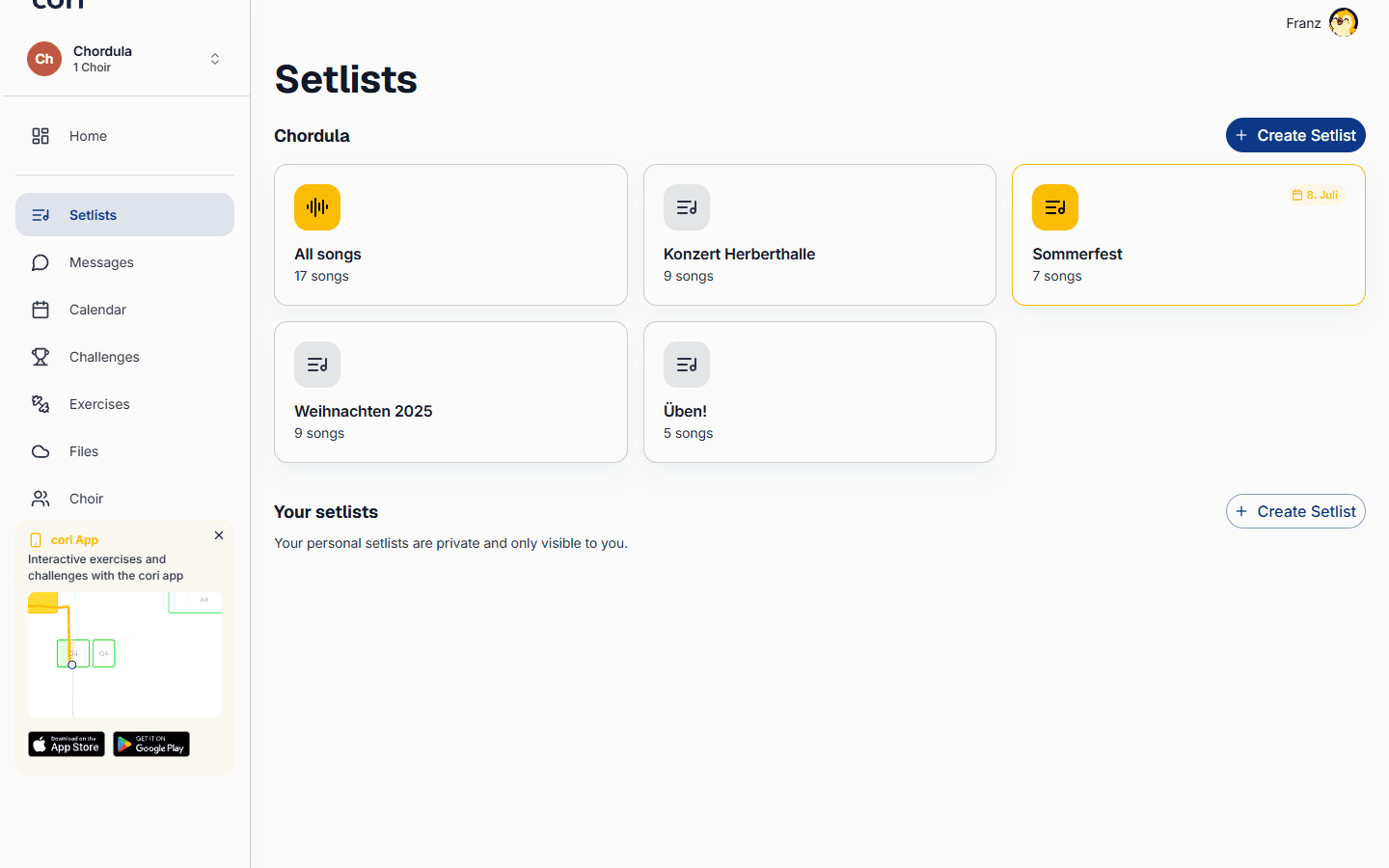
A setlist is an ordered list of songs — and anything else you want on the programme — for a rehearsal or a concert. This guide shows you how to build one, reorder and tidy it, and add custom blocks like pauses and moderation between the songs. You can do all of this on the web and in the mobile app; the songs and order stay in sync across your devices.
Setlists under your choir's name are shared with everyone and can be edited by choir managers. Setlists under Your setlists are personal — private to you and visible only on your own account.
Create a setlist
On the web
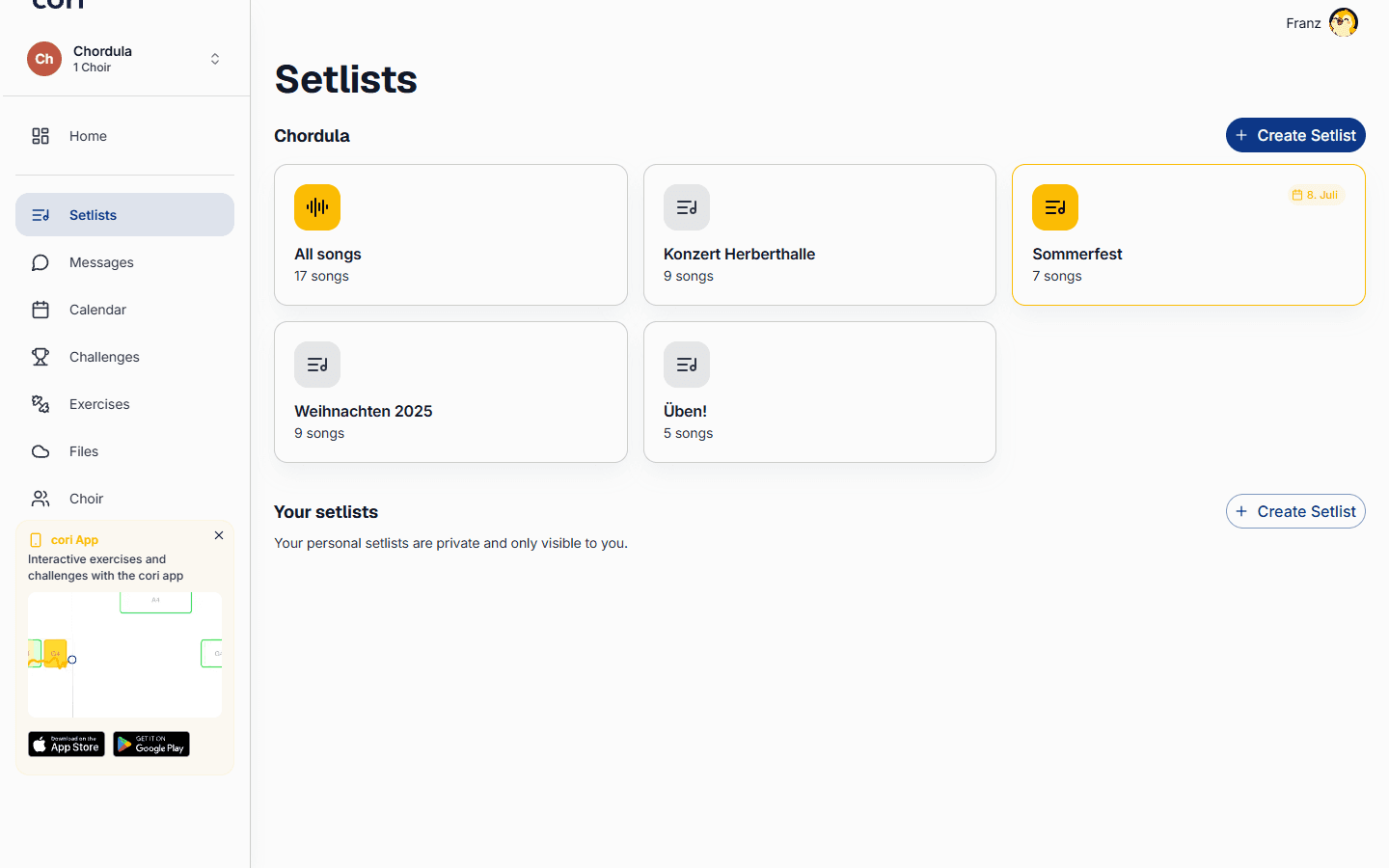
Go to Setlists in the sidebar. You'll see the All songs card, your choir's shared setlists, and a Your setlists section below.
Choose Create Setlist — next to your choir's name for a shared setlist (managers only), or in the Your setlists section for a personal one. Give it a name and, if you like, a cover (more on that below under “Set a cover”).
Search for a song under Add songs and click it in the list below. It lands in the Entries column on the right. You can add the same song more than once — handy when a number opens and closes a concert.
Choose Save. The setlist then appears as a card on the Setlists page.
On mobile
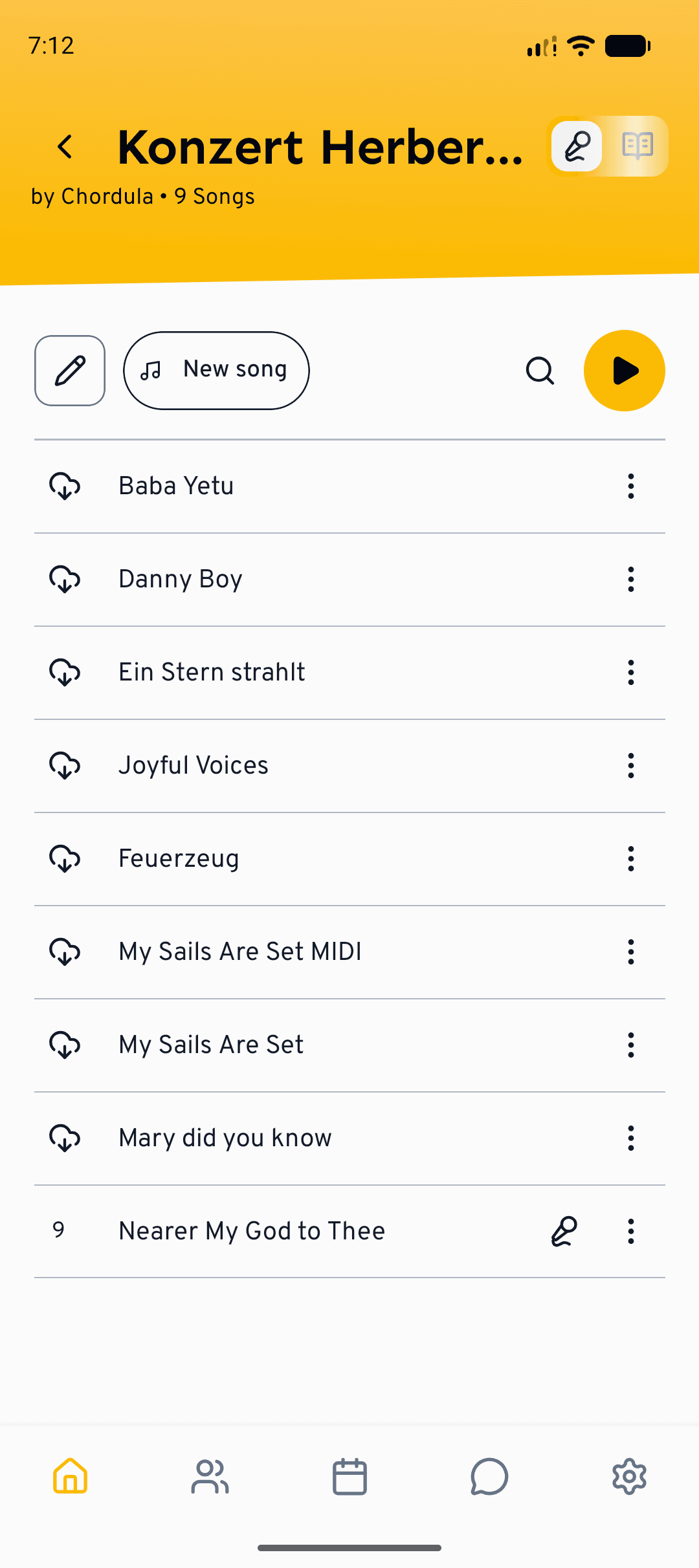
On the home screen you'll see All songs, a Your setlists section, and each choir's shared setlists.
Tap the next to the section you want. If you're also allowed to create songs there, you then choose Create Setlist. A separate screen opens where you give the setlist a name and, optionally, a cover. A personal setlist is saved to your account; one created under a choir is shared (managers only).
Tap Song below the list. In the Add songs picker, tap each song you want; tapping it a second time adds it again, and the minus takes it back out. Tap Done and then Save.
Reorder, edit and remove
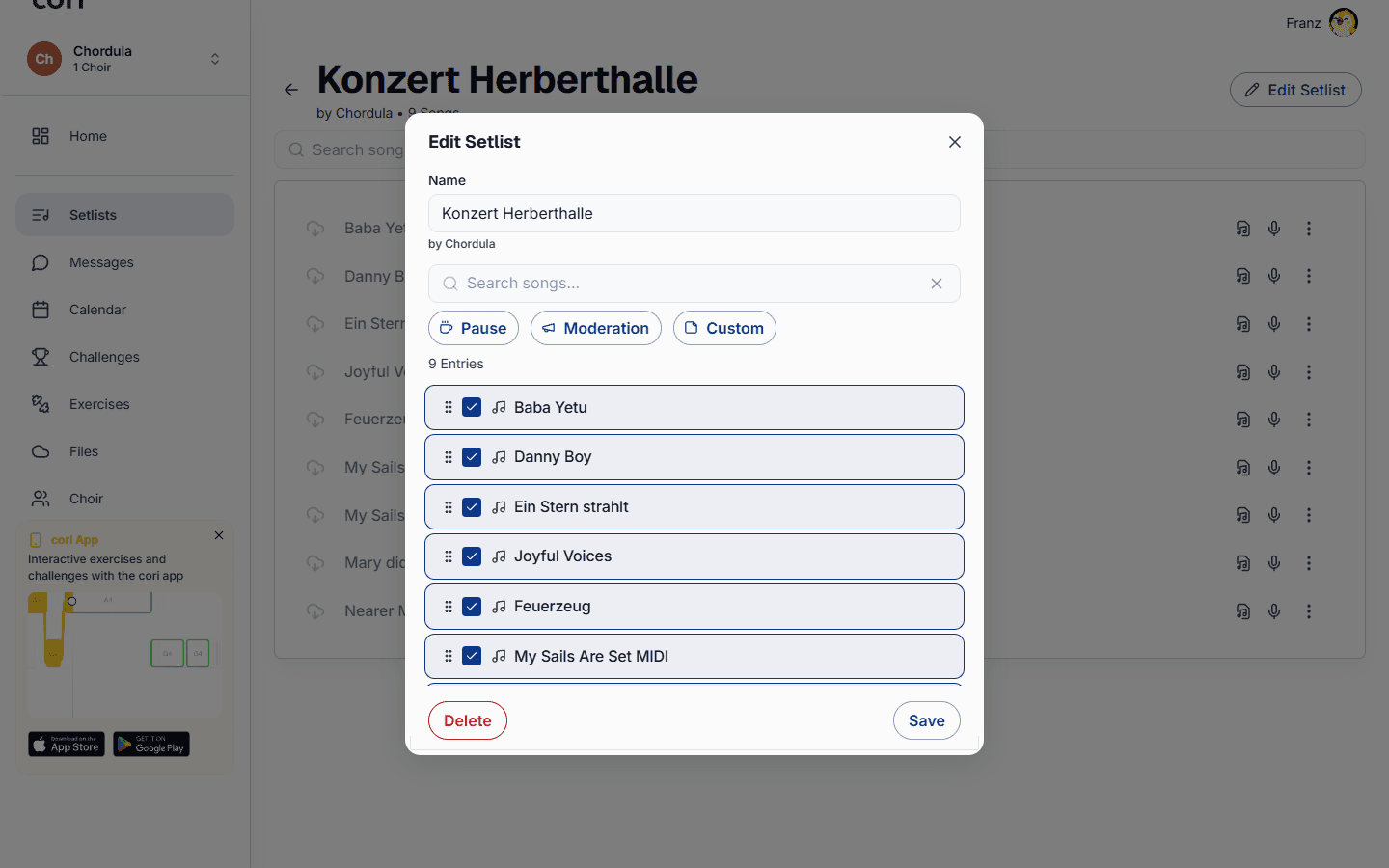
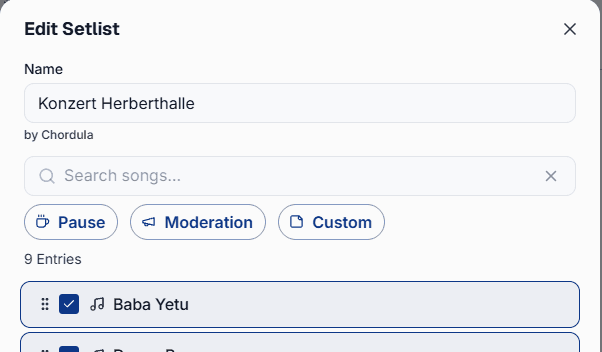
You can build and reorder setlists on either platform. On the web, open a setlist and choose Edit Setlist; the editing happens in a dialog. On mobile, open a setlist and tap the pencil below the cover (or the cover itself). The setlist then opens on its own editing screen, where you commit your changes with Save. If you leave it with unsaved edits, the app asks you Save changes? and you can save or discard.
On the web, each item sits in the Entries column. Drag a row by the grip handle on the left to set the running order, click a row's X to remove it, and choose Save when you're happy.
On mobile, long-press a row (or drag it by the grip handle) to reorder it, use Song to bring in more numbers, and tap a row's X to remove it.
Add custom (non-song) blocks
Concerts aren't only songs. While editing — with the quick buttons under the search box on the web, or the bar below the list on mobile — drop in non-song entries:
- Pause — a break or interval.
- Moderation — a spot for spoken introductions or announcements.
- Custom — anything else you need on the programme (on mobile the button is simply called Entry).
Open a block — on the web with the pencil in its row, on mobile by tapping it — to set its Title and an optional Notes field. Notes support markdown, so you can format your moderation text or a short reminder.
In the finished setlist, the custom blocks structure the programme: the songs between two blocks sit together in a framed section, a set. Pauses, moderation and custom entries sit in between. The numbering counts only the songs and carries on across all the sets.
Pauses, moderation and custom blocks are programme markers — they show in the setlist but are skipped by the player, which only plays real songs. In mobile rehearsal mode they appear as their own note page.
Add archived songs
Archived songs stay out of your main list, but you can still put one on a setlist. On the web, scroll to the Archive section under Available songs and click the song; on mobile, the Add songs picker lists archived songs with an Archive label. Either way they're marked so you can tell them apart.
To edit or delete a setlist later, right-click its card on the web and choose Edit Setlist or Delete (or open it and choose Edit Setlist; Delete sits at the bottom of the dialog). On mobile, long-press its card to go straight to the editing screen. There you rename it and change its entries; to delete it, tap ⋮ at the top right and then Delete. The songs themselves stay; only the setlist with its order and its entries disappears.
Set a cover
Every setlist can have a cover of its own, your concert poster for example. It shows on the setlist's card and large at the top of the setlist itself. Until you choose an image, cori shows a default graphic with birds.
- On the web, click the cover field next to the name while creating or editing (Choose image). Alternatively, hover over the cover in the open setlist, click the camera and choose Choose image or Remove cover.
- On mobile, tap the Cover field on the editing screen and use Choose image to pick one from your gallery, Camera to take one, or tap Remove cover. You set the crop right as you choose the image. The cover is applied with Save.
JPG, PNG and WebP up to 5 MB are allowed; the cover is shown in 16:10. The cover of a shared setlist can only be changed by managers, the cover of your personal setlists only by you.
Duplicate a setlist
You don't have to start from scratch for a new concert: duplicate an existing setlist and adjust the copy. The copy is called “Name (copy)” to begin with and takes over all songs, custom blocks and the cover. A shared setlist becomes a shared one again (managers only), a personal one stays personal.
- On the web, right-click the card and choose Duplicate, or open the setlist and click Duplicate. In the second case, cori jumps straight to the copy.
- On mobile, open the setlist's editing screen, tap ⋮ at the top right and then Duplicate. Any unsaved changes are saved first. You stay in the original; you'll find the copy on the home screen.
What's next?
- Learn how to play and practise the songs in your setlist.
- Attach a setlist to a rehearsal when you create an event in the calendar.
Still need help?
Can’t find what you’re looking for? Send us a message and our team will get back to you.
Contact support