Getting started with cori
Create or join a choir and find your way around cori in a few minutes.
Web + app
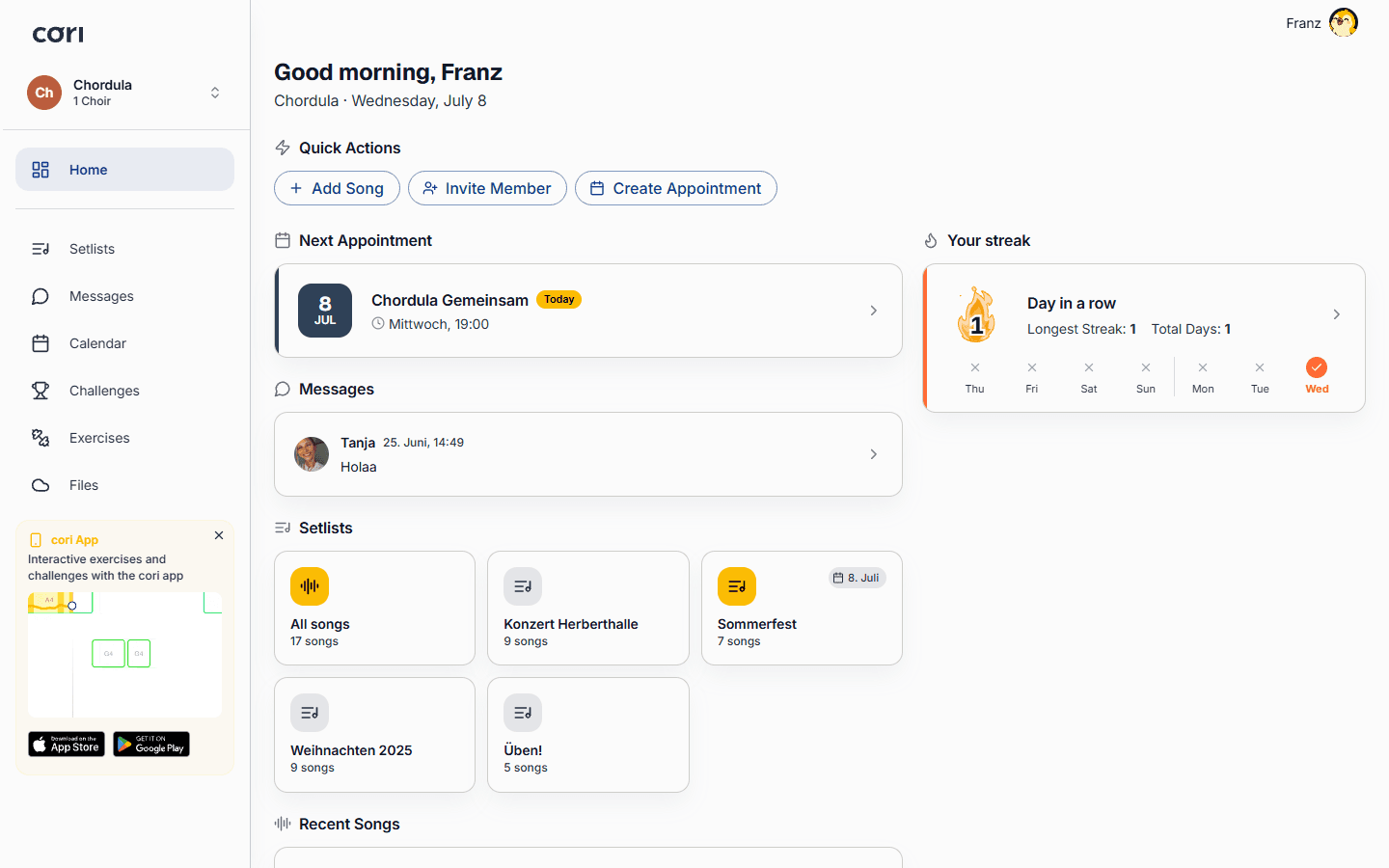
Welcome to cori! cori brings your choir's rehearsals, sheet music, practice recordings and communication together in one place. This guide walks you through the very first steps: setting up your account, creating or joining a choir, and getting comfortable with the main areas of the app.
You can use cori in any browser at cori.music and on the go with the iOS and Android apps. Your choir, songs and messages stay in sync across every device.
Create your account
Open cori.music (or the mobile app) and choose Sign up. You can register with your email address or continue with Google or Apple.
Tell us your name and, if you already know it, your voice pitch (soprano, alto, tenor, bass …). Your voice pitch helps cori show you the right practice tracks later on.
Create a choir or join one
What you do next depends on your role.
If you lead a choir
As long as you're not in any choir, cori greets you with “Welcome to cori!”. Choose Create choir there and give your choir a name. Whoever creates a choir automatically becomes its choir director.
Straight afterwards cori takes you through the setup in four short steps: your choir's voices, the invitation link for your singers, your weekly rehearsal and your first song. How that works is described under Creating a choir.
You share the invitation link during the setup already, and at any time afterwards via Choir›Invite Member. You'll find all the details in the Inviting members guide.
If you're a singer
Your choir leadership sends you an invitation link. Just open it, or choose Join choir and paste the link in. More on this under Joining a choir.
Select the voice pitch you sing so you immediately get the right practice tracks and sheet music.
If you have an organization access code
If you're taking part in a project like 6K UNITED!, your route isn't through a choir but through a short access code in the app, with no email address at all. How that works is described in Joining with an access code.
Find your way around
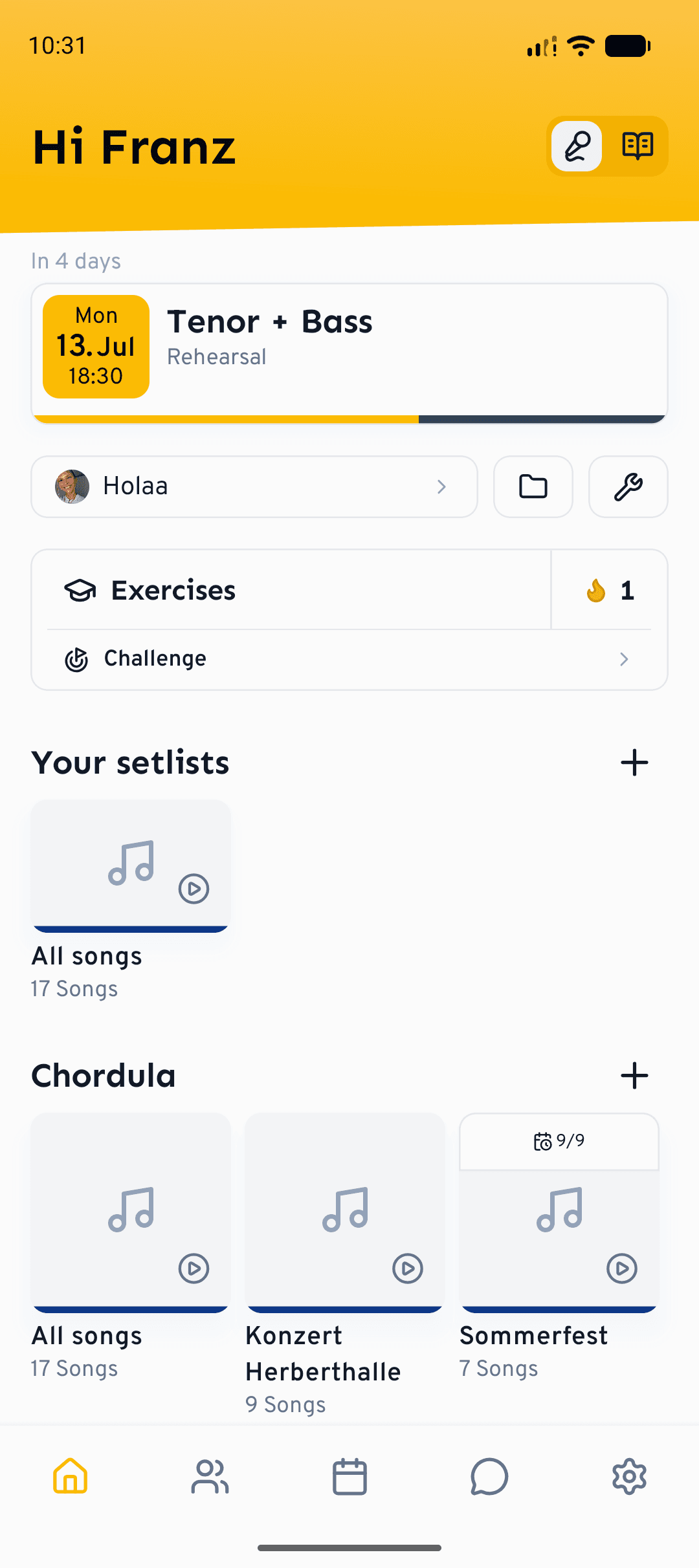
Once you're in a choir, these are the areas you'll use most:
- Dashboard: your overview of the next rehearsal, recent activity and quick links.
- Setlists: the songs and programmes you're working on. Open a song to practise it.
- Calendar: rehearsals and appointments, with attendance.
- Messages: choir-wide announcements, group chats and direct messages.
- Drive: shared files like PDFs, recordings and documents.
- Choir: members, voice pitches and choir settings.
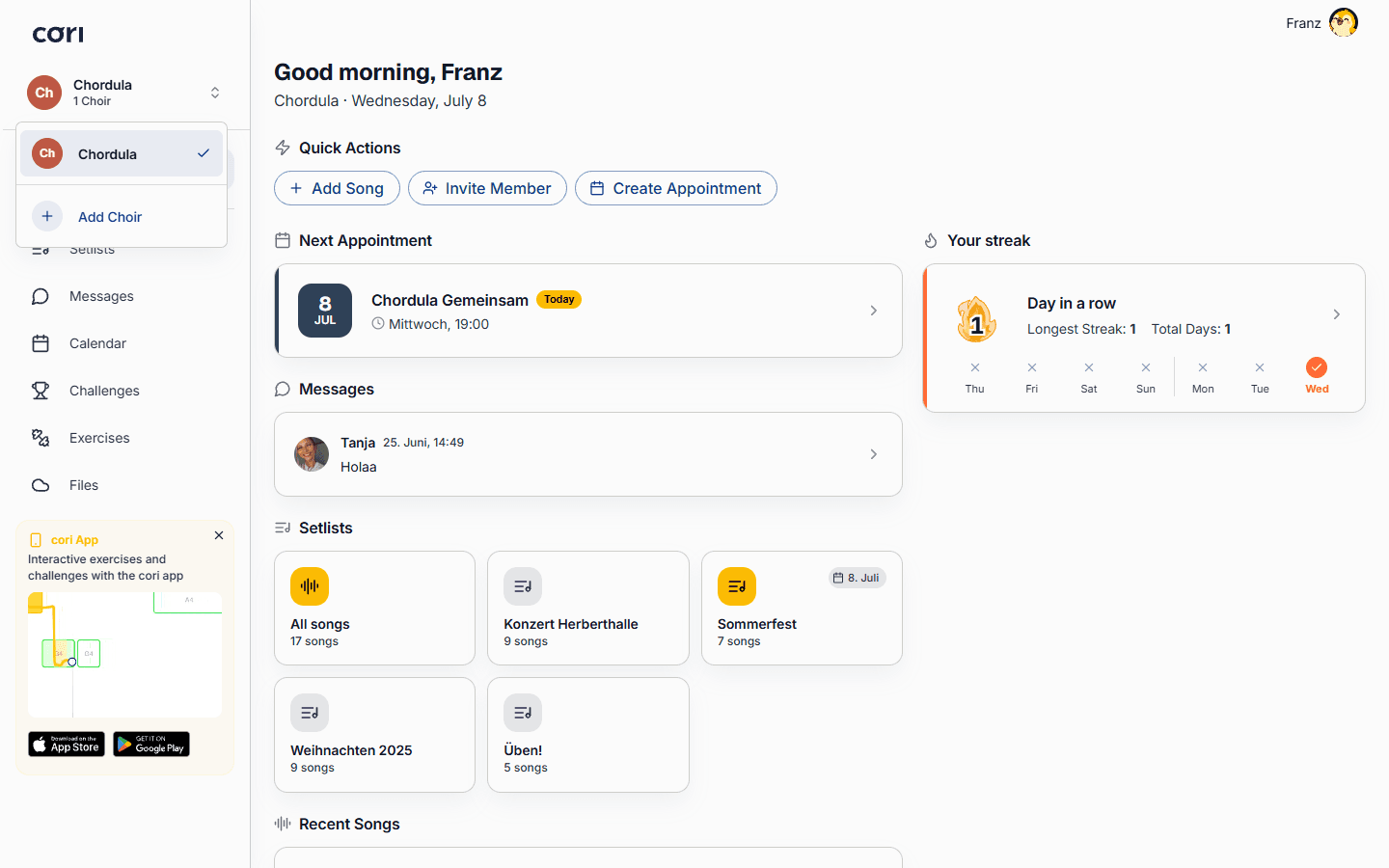
Sing in more than one choir? Use the choir switcher at the top of the sidebar to jump between them. Everything (songs, messages, calendar) follows the choir you've selected.
Short tips the first time round
While you explore cori, the app shows short tips: always right on the element where a feature first becomes relevant, and each of them only once. A few examples: in the player, cori suggests setting a bookmark at tricky passages; in the calendar you learn that clicking a day creates a new appointment there; in the chat, a tip points out the surveys with live results behind the plus button.
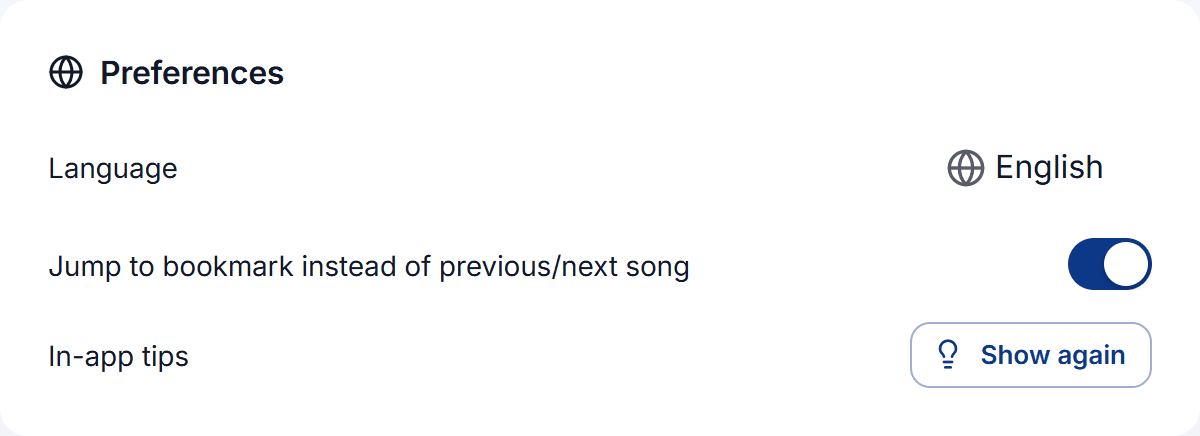
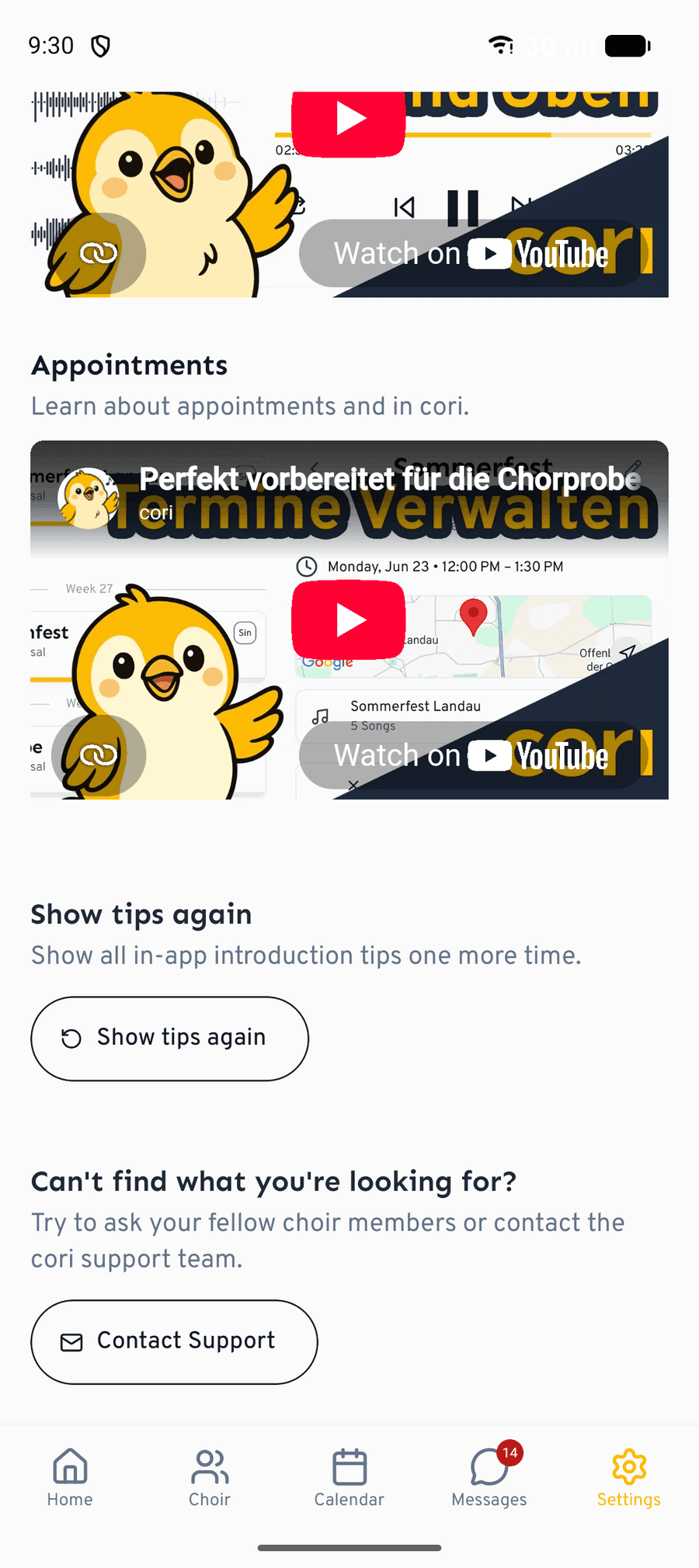
Dismissed a tip and want to read it again? The settings have the In-app tips entry with the Show again action for exactly that. After that all the tips appear again just like on your first run (“Tips will be shown again”). The setup checklist on the home screen comes back with it too, in case you had hidden it.
What's next?
- Learn how to play and practise songs.
- Set up your first rehearsal in the calendar.
- Discover how to build a setlist for your next concert.
Still stuck? Head to the contact page and our team will help you out.
Still need help?
Can’t find what you’re looking for? Send us a message and our team will get back to you.
Contact support