Chats and surveys
Create group chats, direct messages and surveys to keep your choir up to date.
Web + app
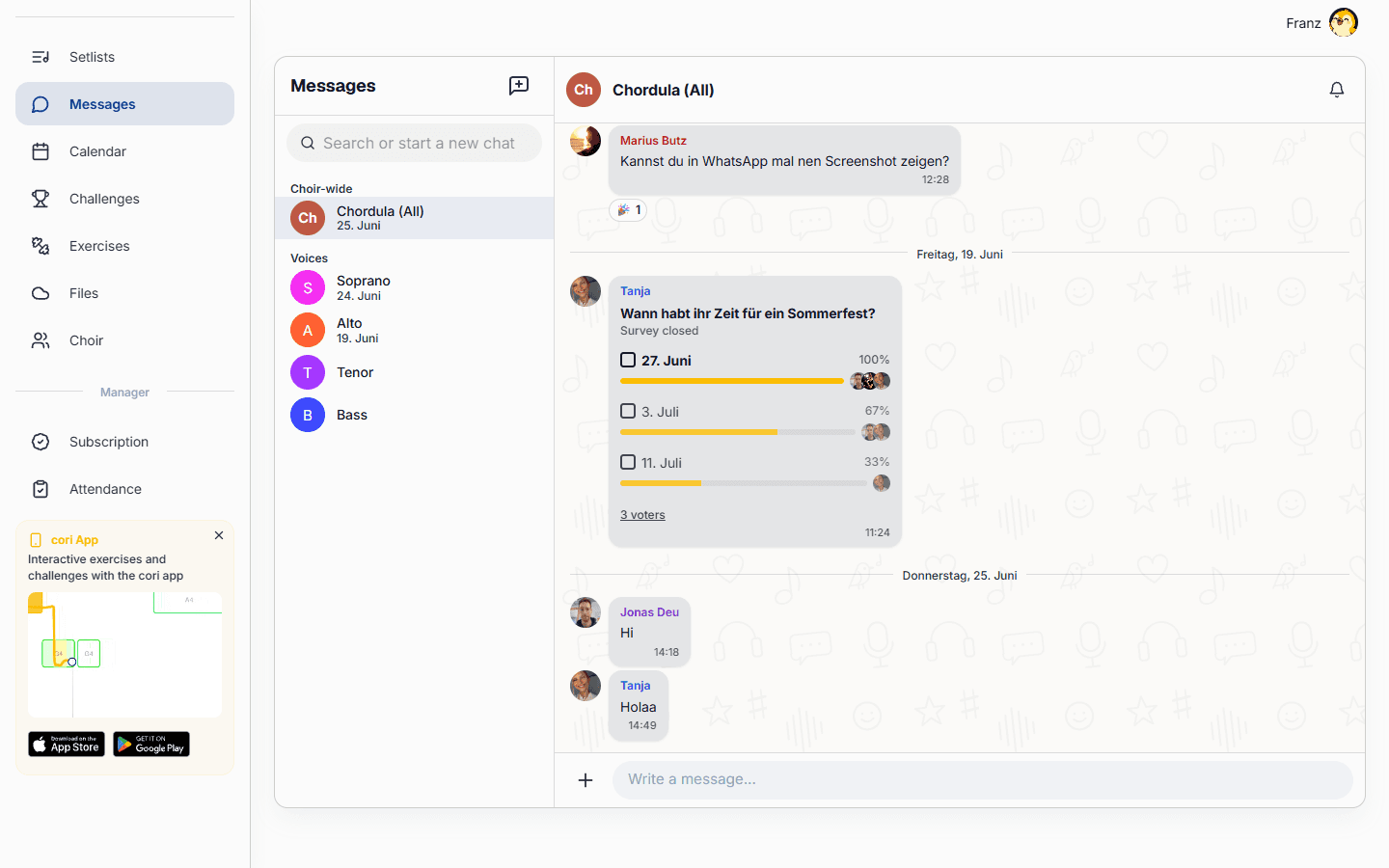
The Messages area is where your choir talks: choir-wide announcements, smaller group chats, one-to-one direct messages and quick surveys to gather everyone's answers. This guide shows you how to start a conversation, decide who's allowed to write in it, and create a survey.
On mobile, your chats are stored on your device, so you can read messages without a connection. Your own messages appear in the chat straight away. If sending doesn't work (because you're offline, for instance), the message stays in the input field and you simply send it again. Everything stays in sync between the web app and your phone.
Find your way around Messages
Open Messages and you'll see your conversations grouped in the sidebar:
- Choir-wide — the main chat for everyone in the choir.
- Voices — automatic chats for each voice pitch (soprano, alto, tenor, bass …).
- Groups — custom group chats you create.
- Direct messages — private one-to-one conversations.
Select any conversation to open it; the choir-wide chat opens by default.
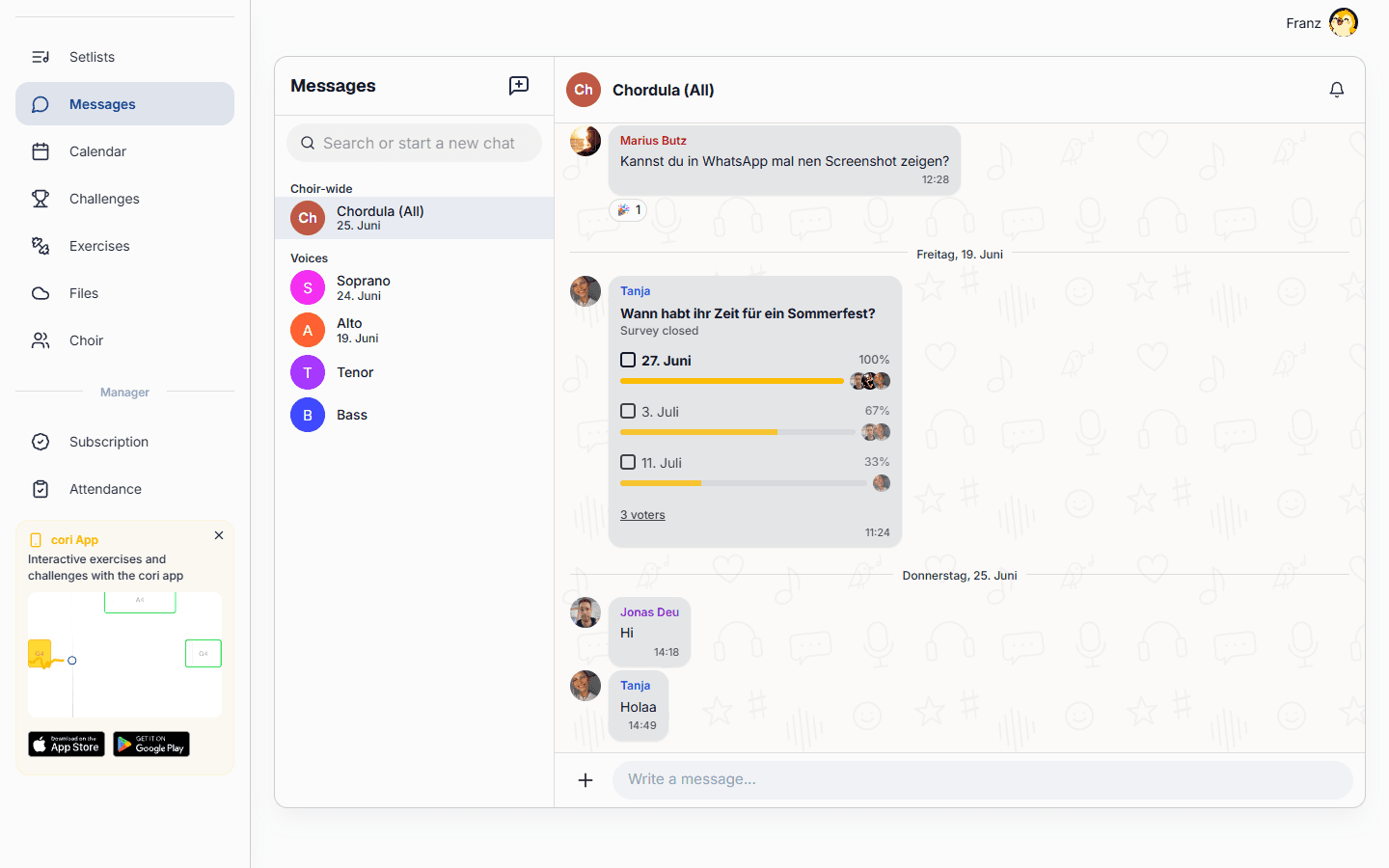
Underneath the name of the open chat you can see who's reading along: All choir members, Voice chat, Group with the number of members, or Private chat. So before you hit send you can see whether your message reaches the whole choir, a group or just one person.
Start a group chat
Every member can create a group chat of their own — whoever creates it becomes its admin. Only the automatic voice chats are set up by the choir director and admins.
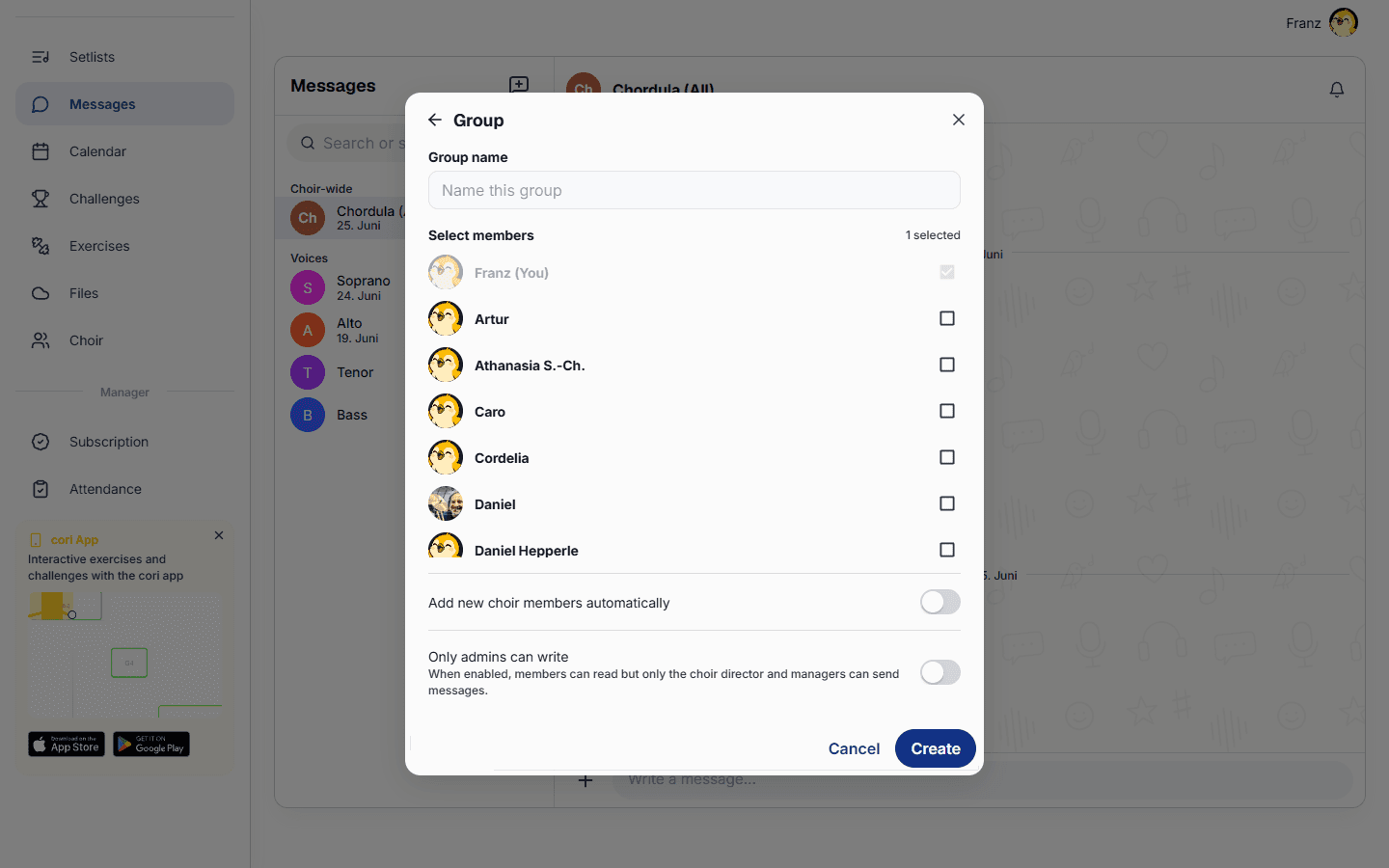
In Messages›New chat, choose Group.
Give the group a name, then tick the members who should join. Turn on Add new choir members automatically if you'd like future joiners to be added for you.
Use the Only admins can write switch to control posting. When it's on, members can read but only the choir director and managers can send messages — perfect for announcement channels. Leave it off for an open discussion.
Choose Create and your group is ready.
Open any group's header to reach Chat info, where the group's admins can rename it, change its picture, add or remove members and flip the Only admins can write setting at any time. The same posting control is available for the choir-wide chat and the voice chats too.
Send a direct message
Anyone can chat privately with another member.
In Messages›New chat, search for and select the member you'd like to message.
A direct conversation opens straight away. Only the two of you can see it.
If you'd like to reply to a message in a group and reach only the person who wrote it, use Reply privately. How that works is described under Group chats.
Link songs in the chat
Instead of just typing out the title, you can attach songs from your song list to a message directly. That works on the web and in the app.
Next to the message field, tap or click the + and then Link a song.
Find the songs you want and tick them. You can link up to five songs per message. They then appear above the message field, where you can also remove them again.
Add some text if you like and send the message. The songs appear as cards underneath it.
A tap or a click on a song card plays the song right in the player. In the app, a song that isn't on your device yet is downloaded first. If a song is renamed later, the card automatically shows the new name. If it's deleted, the card reads Song no longer available. Only the choir director and admins can link private songs; everyone else sees a locked card marked Private song instead.
If you switch chats before you've sent a message, cori remembers the text for that particular conversation. In the conversation list the text is then prefixed with Draft:, and when you open the chat again you can carry straight on writing. Drafts are only stored on the device or in the browser in question.
The app shows very long messages shortened at first. Use Show more to expand the full text.
Create a survey
Surveys (polls) let you ask a question and collect everyone's answers in one place.
In a conversation, tap or click the + next to the message field and then Create survey to open the survey composer.
Enter a question and at least two options. You can add up to 20 options.
Turn on Allow multiple answers if people may pick more than one option, and set a Closing date if voting should stop automatically.
Choose Send survey. Members vote with a tap or a click, and live results appear right in the chat. You can close a survey early or edit it whenever you need to.
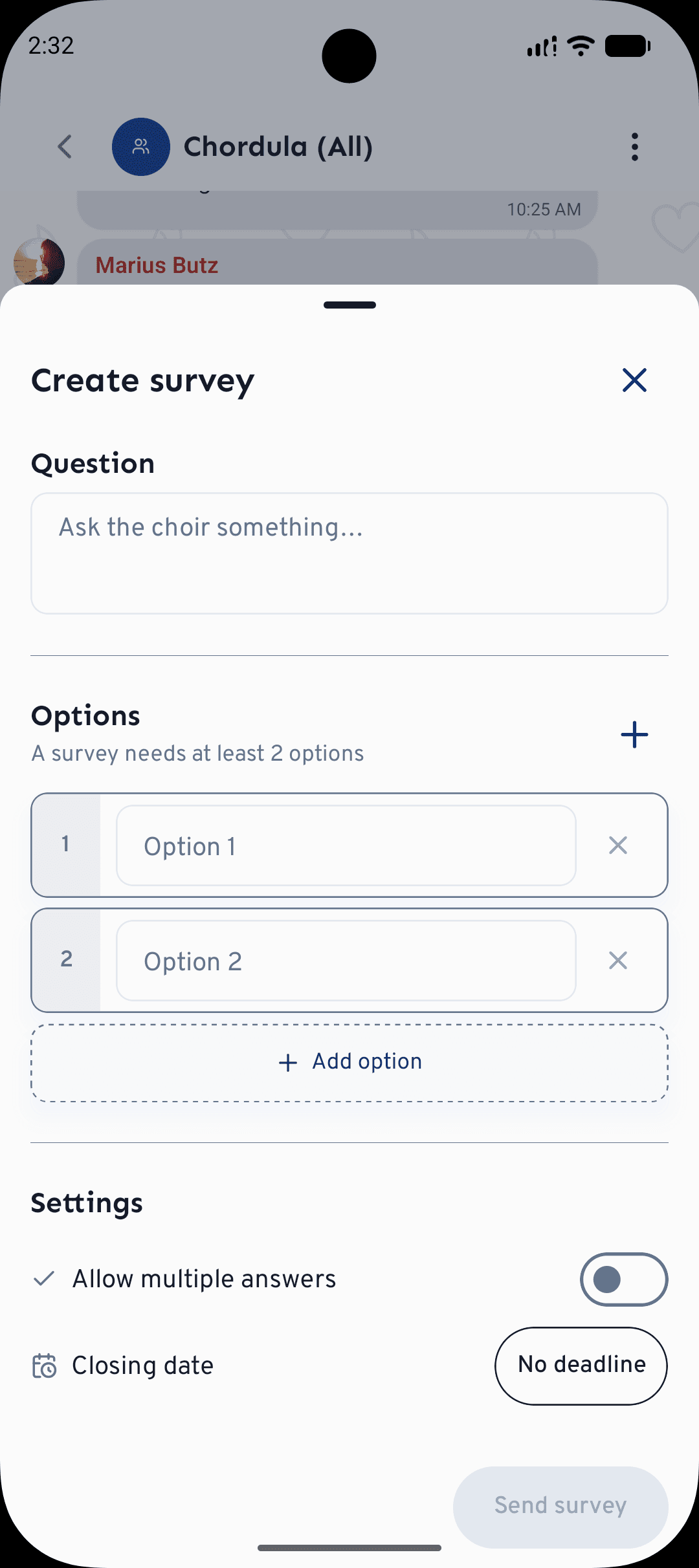
Messages, group chats and surveys work the same way in the browser at cori.music and in the app on your phone (the illustration shows the app). On the web you'll find Create survey in the + menu next to the message field as well.
In the choir-wide chat and the voice chats, only the choir director and managers can create surveys. In group and direct chats, anyone who can post may create one.
What's next?
- Bring more singers on board — see Inviting members.
- New to cori? Start with the Getting started guide.
Still stuck? Head to the contact page and our team will help you out.
Still need help?
Can’t find what you’re looking for? Send us a message and our team will get back to you.
Contact support